Friday, February 10, 2012

Creating set of folders for test data with specific IDs

I have been given 150 ID and was told to create folders matching already existing folders for some other IDs. The IDs are to be used as a test data and the folder must exist for each ID to be valid.
I took some time to think how to do this efficiently and in a smart way saving time and effort, and I thought of something to be done
First I went to the ID folder that I already have, did select all, then copy and past several times at the same location, this will create multiples of this folder depending on how times you do select all, copy, past. No of end folders = 2^n, then I adjusted the number so that I have 150 only
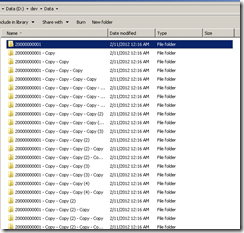
Screenshot-2012-02-11_00.16.49
Now I have 150 folder but with incorrect names, Next I should rename to my IDs
Second I opened command prompt, went to that folder that contains the 150 folder, typed dir command and set the output to text file
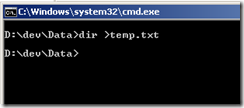
dir /w >temp.txt
Screenshot-2012-02-11_00.24.57
No I have a text file containing the 150 folder name, the temp names
Third, I opened excel, and in blank sheet, first column I entered “ren “, second row I pasted the 150 temp folder names, third column I pasted the IDs, fourth cell I concatenated all the previous cells. Make sure to replace [ , ] with “
Screenshot-2012-02-11_00.36.29
No I have 150 rename command from the old temp folder names to the new IDs
Last, I selected  the 150 ren command, copied them, then in the command prompt, I did a right click then selected past. The 150 ren command will be executed
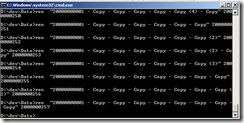
Screenshot-2012-02-11_00.42.17
Now, I have my 150 folder for my 150 ID created in a smart and efficient way
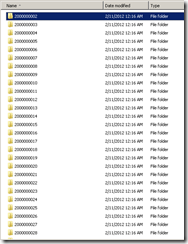
Screenshot-2012-02-11_00.42.30


Of course there are other ways to do this, like later, I did a small program to create folders just with one click.

Thursday, February 9, 2012

Recycling data for performance and automation tests

We had some scripts that performs some functions on our data, mainly change of status. we wanted to repeat the scripts over and over, for the performance testing and automation also.

At the beginning I thought of having a large set of data, and to use from this pool of data, and remove what we use.

Also I thought of having my script steps creating the data at the beginning, and doing the reverse processing at the end of the script, so that it can be used again, this is not always possible with all scripts

Another option I thought of, is to connect to the DB and to get the data on the fly, but this is not always possible and depends on the tool.

Lastly I thought of creating a trigger on the DB, so that when the status changes for example, it is set back as it was.

Al these solutions can be used according to the scenario and the processing that is done on the data.

Tuesday, February 7, 2012

jmeter: Validate regular expression extractor

I had some extractors in my test, and when I was looking on the request using the extracted values, I noticed that it is not coming correctly. I looked for someway to validate this extractors to see whether I did it correct or not.

First I made sure that I am using the variables correctly in my test

So if the regular expression Reference Name is param1, it should be used as ${param1}

Second, I found that the regular expression can be verified from the “View Results Tree”, so I went to the request, then selected the Response Data tab in the details panel as below

Screenshot-2012-02-07_11.48.58

Then at the bottom, I have entered regular expression in the search box, and checked the Regular exp. check box

at first it wasn’t bringing any results, because there is ? in the regular expression that needs to be escaped

when I changed ? to \?, results was found and highlighted in the response

Screenshot-2012-02-07_11.48.15     Screenshot-2012-02-07_11.48.31

Using this method I was able to verify and correct the regular expressions for the regular expression extractor

Thursday, February 2, 2012

JMETER: using parameters from csv file

I wanted to parameterize my requests, like the login for example, to be able to use different users
looking for some help from the web I found this useful article
http://ivetetecedor.com/192/how-to-use-a-csv-file-with-jmeter
I followed the article, created users.csv file with user names and password like the below
user1, password
user2, password
etc…
Then added CSV Dataset Config to my requests, set it like below
image
Next i went to the request and changed the login info to ${user} and ${password}

JMETER: Extracting values using regular expression extractor

We were trying jmeter to do our performance test, one of the issues we faced is that we needed to extract values from pages to be used in next requests

to do so we need to add Regular Expression Extractor to the request, and to set the extractor properties

The most important part is the Regular Expression property

Getting some help from http://jmeter.apache.org/usermanual/regular_expressions.html

I used a general form like the following, to extract readme.txt from name="file" value="readme.txt"

we use Regular Expression

name="file" value="(.+?)"

OR

name="file" value="([^"]+)"

If there is no double quotes  at the end, then it will be like

login?execution=(.+?)$

Sunday, January 29, 2012

Multiple connections to a server or shared resource by the same user, using more than one user name, are not allowed. Disconnect all previous connections to the server or shared resource and try again.

I was facing the above error when I was trying to connect to a shared folder, googled it a lot, with no luck, as there are lots of results but are not related. I was able to access this resource before and then suddenly I was receiving this error

“Multiple connections to a server or shared resource by the same user, using more than one user name, are not allowed. Disconnect all previous connections to the server or shared resource and try again”

until I found this post here http://travisepperson.blogspot.com/2007/01/windows-network-folder-specified-is.html

I tried the solution in and it worked

I opened command prompt “cmd”

I entered “net use” command, a list was displayed for me, one of them was on the same server of the shared resource I am trying to access

I entered “net use /delete [resource name]”

image

Then I was able to access the resource normally

Sunday, January 22, 2012

Visual Studio Web Test: Generating Random unique parameters at runtime

I had a scenario that requires several fields to be unique, and I wanted to have a web test for this scenario. I had the problem of generating these unique parameters to be unique

The first naïve solution I used is to create these unique values using excel and then saving in csv file. Then in my scenario, I set the parameter to a data source from this csv file. But this required me every time I run the scenario to remove the values that are used

Second trial for me, I converted the recorded web test to a coded test, this allowed me to to change the parameters programmatically and also gave me lots of flexibility on the test, on the other hand I lost the usability and flexibility of the web test designer, where I can record more to these test, extract parameters easily, etc..

In the coded test, I was looking for the request that has the parameters that needs to be unique, then I created a function to create a 10 digits random number and returns this as string, like below

public string generateRandomId()
{
    Random rand = new Random();
    string[] random = new string[10];
    for (int i = 0; i < 10; i++)
    {
        random[i] = rand.Next(0, 9).ToString();
    }
    return string.Join("",random);
}

Then at the request parameter setting, I changed from

request8Body.FormPostParameters.Add("Form1:referenceNumberText", "12341212323");

to

request8Body.FormPostParameters.Add("Form1:referenceNumberText", generateRandomId());

Third trial which is the best as believe, I created a web test plugin to set a context parameter at the beginning of the test

First I created a context parameter, by doing right click on the web test, then selecting Add Context Parameter

image

Then I renamed this parameter to RandomText

image

Then following the instructions here, http://msdn.microsoft.com/en-US/library/ms243191(v=vs.80).aspx  I created a new project in my solution, and added a new class, called it WebTestPlugin.cs

Added reference to Microsoft.VisualStudio.QualityTools.WebTestFramework and added the following line at the top

using Microsoft.VisualStudio.TestTools.WebTesting;

Then Changed the class name and inherited from WebTestPlugin, the code looked like below

public class webTestPlugin : WebTestPlugin
{
    string randomTxt;
    public override void PreWebTest(object sender, PreWebTestEventArgs e)
    {
        randomTxt = generateRandomId();
        e.WebTest.Context["RandomText"] = randomTxt;
        base.PreWebTest(sender, e);
    }

public string generateRandomId()
{
    Random rand = new Random();
    string[] random = new string[10];
    for (int i = 0; i < 10; i++)
    {
        random[i] = rand.Next(0, 9).ToString();
    }
    return string.Join("",random);
}

}

Then I went to my web test project, added a reference to my plugin project

image

Then added the plugin to my web test

image

by doing the above, I had the flexibility of web test designer, and the flexibility of writing my own code in the web test

Monday, January 16, 2012

Visual Studio Web Test: Excluding resources that are failing the test

I had a recorded scenario that when running back, one resource was giving 404 error, and because of that the test was failing

this resource was not important, it was just a css file, I looked on how to exclude such non-important resources from the test, I found some useful information here http://blogs.msdn.com/b/densto/archive/2007/06/27/webtestrequest-dependentrequests-collection.aspx

so first I converted my test to web coded test, then I looked for the request that was causing the problem, then I added this line before the yeld command for the request

request4.PostRequest += new EventHandler<PostRequestEventArgs>(request4_PostRequest);

Then added the request4_PostRequest implementation at the end

void request4_PostRequest(object sender, PostRequestEventArgs e)
{
    List<WebTestRequest> remove = new List<WebTestRequest>();
    foreach (WebTestRequest dependent in e.Request.DependentRequests)
    {
        if (dependent.Url.EndsWith("template.css"))
        {
            remove.Add(dependent);
        }
    }

    foreach (WebTestRequest dependent in remove)
    {
        e.Request.DependentRequests.Remove(dependent);
    }
}

Doing the above, I am able to run the test and getting pass as a final result

Another easier way I found later from Ed Glas post http://blogs.msdn.com/b/edglas/archive/2008/08/06/masking-a-404-error-in-a-dependent-request.aspx

This way can be done on the recorded scenario directly without converting to coded test

Sunday, January 15, 2012

Visual Studio Web test, creating extraction rule

I was creating a web test for a flow, with several forms, I had an ID that I wanted to use later in other requests, that wasn’t detected by the Visual studio parameter automatic linking.

The easiest way to do that

1- I did a run for the recorded scenario

2- I searched for the request that was displaying the ID on the screen

3- I went to the Response tab, where I can see the response html

image

4- I looked for the ID that I need to extract

5- Select the text that you want to extract, then do a right click and select Add Extraction Rule

image

After doing so, the web test will be opened and a confirmation will be displayed showing the rule name

image

image


If the required text is at the beginning of the line, you might need to add “\n” at the end of the “Starts with”